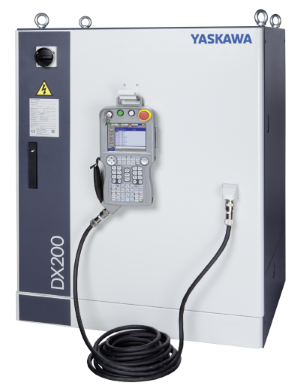
Software version
DN3.11 (or newer).Setup steps
Install fieldbus board
Mount the option board in the robot controller.Setup MotoLogix
Activate the (paid) option function (by Yaskawa) and setup MotoLogix for the desired fieldbus and PLC architecture.Setup fieldbus
Define the fieldbus data packet for MotoLogix.Set parameters
Set the internal parameters required for MotoLogix usage.
The setup process requires the robot controller to be in maintenance mode
and a sufficient authorization level (management or higher).
Read more...
Activate maintenance mode:
- Power off
- Press (and hold) main menu
- Power on
- Release main menu when the beeping sound is heard (usually within a few seconds)
Change the authorization level:
- system » security » select
- select the desired level using ▼ ▲ » select
- enter the password and press enter
Install fieldbus board
Yaskawa robot controllers use various fieldbus solutions:
| type | description |
|---|---|
PCI | Large form factor option board |
PCIe | Compact form factor option board |
cpu board | Software option (uses the built-in LAN port) |
Mounting the PL-IB300 board
PCI board.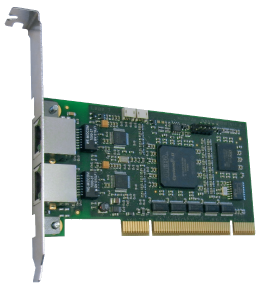
Read more...
Loosen the screws and remove the installation frame from the CPU rack:
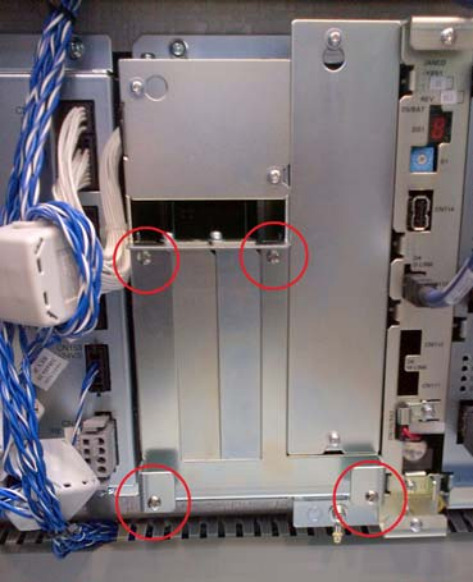
Installation frame Insert the PCI card into the corresponding slot (1 or 2) and tighten the screw:
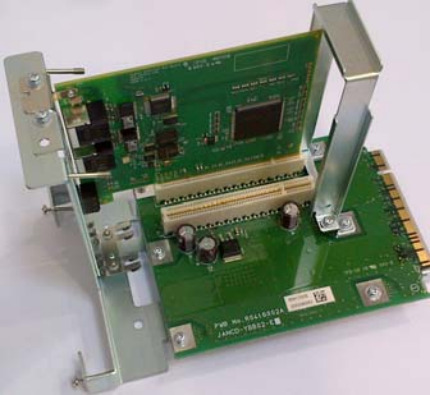
Insert PCI card into the slot Install the installation frame into the CPU rack and fasten it again with the screws:
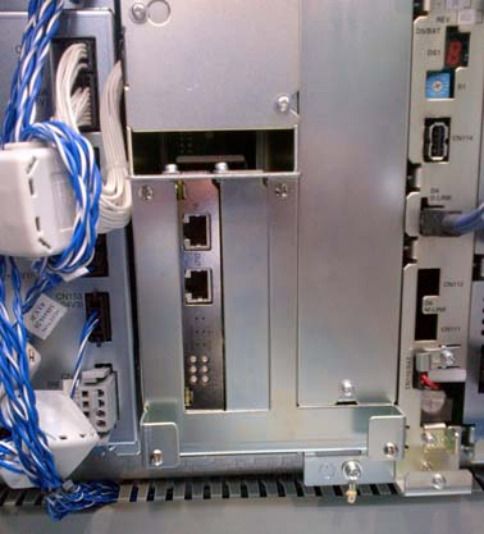
Installed installation frame
Setup MotoLogix
Open the MotoLogix option function settings: system » setup » option function » motologix
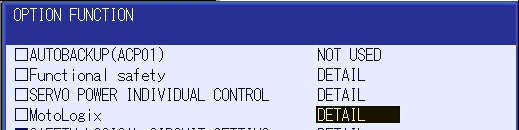
MotoLogix option function Customers: Please contact Yaskawa if the MotoLogix option function is not available in the list.Activate the MotoLogix option function:
This requiresYaskawaauthorization level and cannot be changed by the customer.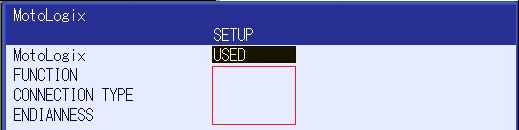
MotoLogix settings Enter the settings:
item value FUNCTION ENABLEDCONNECTION TYPE POWERLINKENDIANNESS LITTLECustomers can disable MotoLogix afterwards by settingFUNCTIONtoDISABLED.TheENDIANNESS(byte order) depends on the PLC cpu architecture.Use enter to confirm and leave the settings screen.
Setup fieldbus
PL-IB300 board settings
Open the board settings: system » setup » option board » powerlink pl-ib300
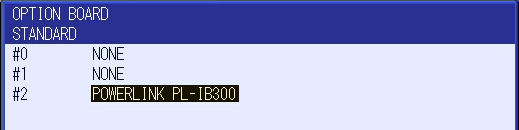
Option boards Enter the settings:
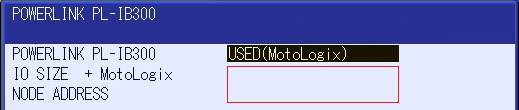
Powerlink settings item value POWERLINK PL-IB300 USED (MotoLogix)IO SIZE + MotoLogix 0 dword + 109 dwordNODE ADDRESS 1Customers can adjust these default settings to their needs.
Example: To add an optional non-MotoLogix data packet of e.g.
32 byteset the value to8 dword + 109 dword.The size of theMotoLogixdata packet is fixed and shall not be changed.Adding a non-MotoLogix data packet might require to change/shift the address mapping of the MotoLogix data packet in the PLC.Use enter (multiple times) to confirm this- and the following screens. Don’t make any changes in these following screens (keep default IO allocation).
Parameter settings
Read more...
| parameter | value |
|---|---|
| FD 6 | 5 |
| FD 7 | 1 |
| FD 256 | 2 |
| MF1G 4 | 153 |
| RS 475 | 3 |
| S1C1G 57 | 0 |
| S1D 199 | 1 |
| S1D 229 | 0 |
| S1D 233 | 0 |
| S1D 256 | 2 |
| S2C 244 | 1 |
| S2C 316 | 1 |
| S2C 541 | 0 |
| S2C 542 | 0 |
| S2C 1015 | 2 |
| S2C 1139 | 0 |
| S2C 1142 | 5 |
| S2C 1147 | 0 |
| S2C 1419 | 1 |
| S3C 1380 | 50 |
| S3C 1385 | 100 |
| S3C 1387 | 1 |