Software version
YBS2.48 (or newer).Setup steps
Install fieldbus board
Mount the option board in the robot controller.Setup MotoLogix
Activate the (paid) option function (by Yaskawa) and setup MotoLogix for the desired fieldbus and PLC architecture.Setup fieldbus
Define the fieldbus data packet for MotoLogix.Set parameters
Set the internal parameters required for MotoLogix usage.
The setup process requires the robot controller to be in maintenance mode
and a sufficient authorization level (management or higher).
Read more...
Activate maintenance mode:
- Power off
- Press (and hold) main menu
- Power on
- Release main menu when the beeping sound is heard (usually within a few seconds)
Change the authorization level:
- system » security » select
- select the desired level using ▼ ▲ » select
- enter the password and press enter
Install fieldbus board
Yaskawa robot controllers use various fieldbus solutions:
| type | description |
|---|---|
PCI | Large form factor option board |
PCIe | Compact form factor option board |
cpu board | Software option (uses the built-in LAN port) |
EtherNet/IP CPU Board option function
cpu board, using the built-in LAN port.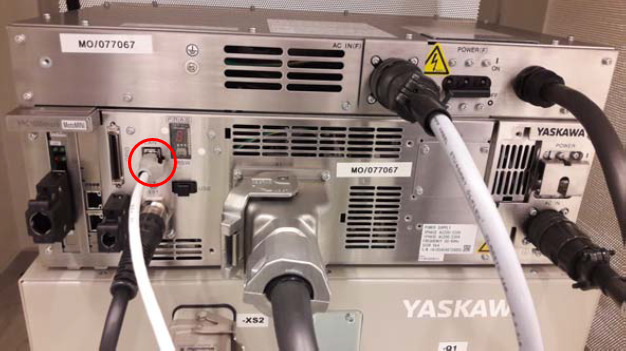
Setup MotoLogix
Open the MotoLogix option function settings: system » setup » option function » motologix
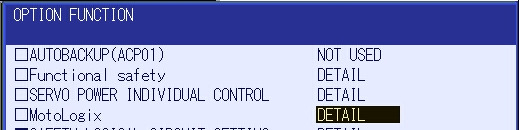
MotoLogix option function Customers: Please contact Yaskawa if the MotoLogix option function is not available in the list.Activate the MotoLogix option function:
This requiresYaskawaauthorization level and cannot be changed by the customer.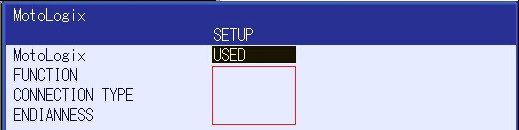
MotoLogix settings Enter the settings:
item value FUNCTION ENABLEDCONNECTION TYPE Ethernet/IP(CPU Board)ENDIANNESS Rockwell: LITTLE
Yaskawa MPiec:BIGCustomers can disable MotoLogix afterwards by settingFUNCTIONtoDISABLED.TheENDIANNESS(byte order) depends on the PLC cpu architecture.Use enter to confirm and leave the settings screen.
Setup fieldbus
Read more...
Open the EtherNet/IP option function settings: system » setup » option function » EtherNet/IP(CPU Board)
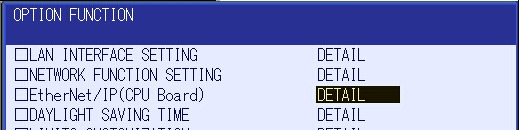
EtherNet/IP option function Customers: Please contact Yaskawa if the EtherNet/IP option function is not available in the list.Open the board settings:

Open board settings Enter the settings:
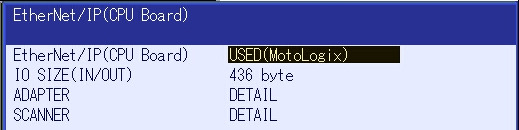
Board used for MotoLogix item value EtherNet/IP(CPU Board) USED (MotoLogix)Open the adapter screen and enter the settings:
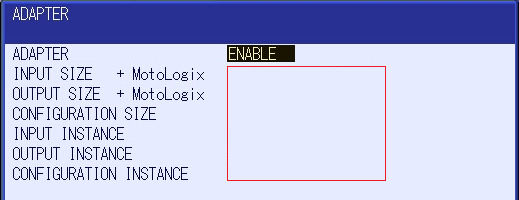
EtherNet/IP adapter settings item value ADAPTER ENABLEINPUT SIZE + MotoLogix 0 byte + 400 byteOUTPUT SIZE + MotoLogix 0 byte + 436 byteCONFIGURATION SIZE 10 wordINPUT INSTANCE 201OUTPUT INSTANCE 200CONFIGURATION INSTANCE 202Use enter (multiple times) to confirm this- and the following screens. Don’t make any changes in these following screens (keep default IO allocation).
IP address setting
The system ships with the following default address settings:
| item | default setting |
|---|---|
| IP ADDRESS | 192.168.255.1 |
| SUBNET MASK | 255.255.255.0 |
| DEFAULT GATEWAY SETTING | NOT USED |
Open the LAN option function settings: system » setup » option function » LAN interface setting
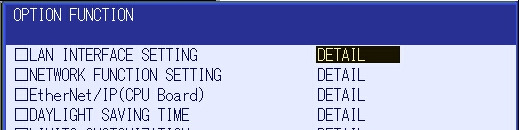
LAN option function Adjust settings to your needs:
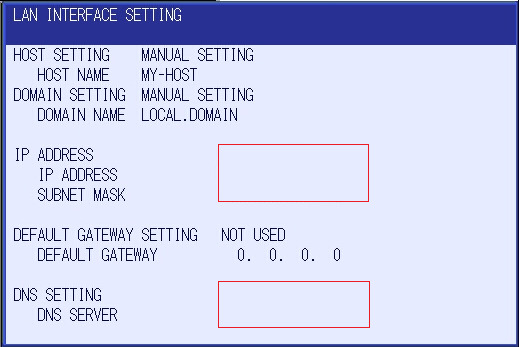
LAN settings item value IP ADDRESS SETTING MANUAL SETTINGIP ADDRESS <IPv4 address> SUBNET MASK <subnet mask> DEFAULT GATEWAY SETTING NOT USED/USEDDEFAULT GATEWAY <gateway address> Use enter to confirm and leave the settings screen.
Parameter settings
Read more...
| parameter | value |
|---|---|
| FD 6 | 5 |
| FD 7 | 1 |
| FD 164 | 1 |
| FD 256 | 2 |
| MF1G 4 | 55 |
| RS 475 | 3 |
| S1C1G 57 | 0 |
| S1D 199 | 1 |
| S1D 229 | 0 |
| S1D 233 | 0 |
| S1D 256 | 2 |
| S2C 221 | 0 |
| S2C 244 | 2 |
| S2C 316 | 1 |
| S2C 541 | 0 |
| S2C 542 | 0 |
| S2C 869 | 1 |
| S2C 1015 | 2 |
| S2C 1139 | 0 |
| S2C 1142 | 4 |
| S2C 1147 | 0 |
| S2C 1419 | 1 |
| S2C 1586 | 1 |
| S2C 1702 | 1 |
| S2C 1703 | 1 |
| S2C 1704 | 1 |
| S3C 1380 | 50 |
| S3C 1385 | 100 |
| S3C 1387 | 1 |